
You built a website with AI, and it works perfectly, on your own computer. The address bar says localhost:3000, or maybe a string of numbers like 203.0.113.10. You send the link to a friend and it doesn't open.
That isn't a bug. It's the gap between running a website and publishing one, and the missing piece is almost always a domain name. This guide explains the difference between the addresses you may be using today, why most of them can't be your real website address, and how to move to a proper domain on any kind of hosting.
The four kinds of address
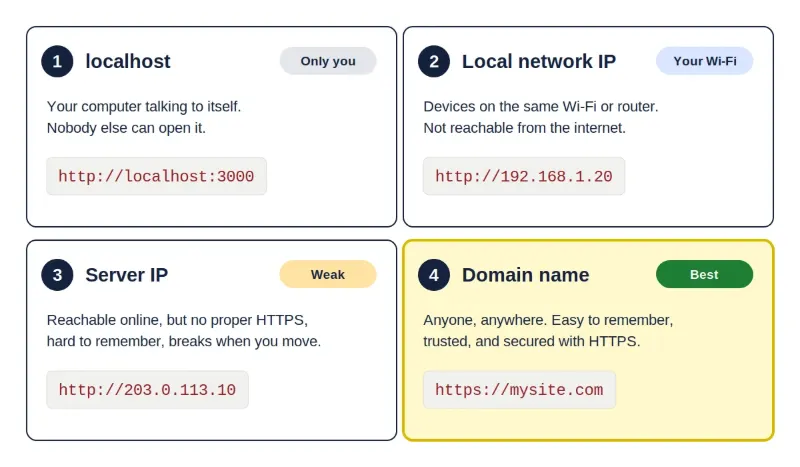
A website can be reached in four different ways. They look similar, but they work very differently.
| Address type | Example | Who can open it |
|---|---|---|
| localhost | http://localhost:3000 | Only the computer it runs on |
| Local network IP | http://192.168.1.20 | Devices on the same Wi-Fi or router |
| Server IP | http://203.0.113.10 | Anyone online, but see below |
| Domain name | https://mysite.com | Anyone, anywhere |
The numbers in this guide are examples. 203.0.113.x is a range set aside for examples, so it never points to a real server.
Why localhost only works for you
localhost (also written 127.0.0.1) means "this very machine." When you type it, your computer talks to itself. When your friend types the same address, their computer talks to itself, finds nothing, and shows an error. The word means something different on every device.
Addresses that start with 192.168., 10. or 172.16. to 172.31. are the same kind of thing at a bigger scale. They are private addresses used inside homes and offices. People on your Wi-Fi can open them, but nobody on the internet can.
Running a site locally is the right way to build it. The problem starts when it's the only place it lives. Your site is also only online while your computer is on and the app is running.
Why a server IP isn't a real address
Once your site runs on a real server, whether that's shared hosting, a VPS, or a cloud machine, you can open it by the server's IP address. Some people stop there. It causes several problems:
- The server may not know which site to show. One IP often serves many websites, and the server decides which one to show using the domain name in the request. Open the bare IP and you may get a default page, an error, or someone else's site.
- No proper HTTPS. HTTPS is normally set up for a domain name, and a bare IP address usually can't get the standard free certificate. Without HTTPS, browsers show "Not secure," and anything visitors type, such as passwords and form details, travels in readable form.
- It breaks when you move. The IP belongs to the server. Change host or plan and the number changes, and every link you shared stops working. With a domain, you just point it at the new server.
- People and filters don't trust it. Many spam filters and security tools treat links made of bare numbers as suspicious, and visitors can't remember or recognise them.
- No professional email. An address like
hello@mysite.comneeds a domain. - Duplicate copies for search engines. If your site answers on both the IP and the domain, search engines can see two copies of every page.
What a domain really is
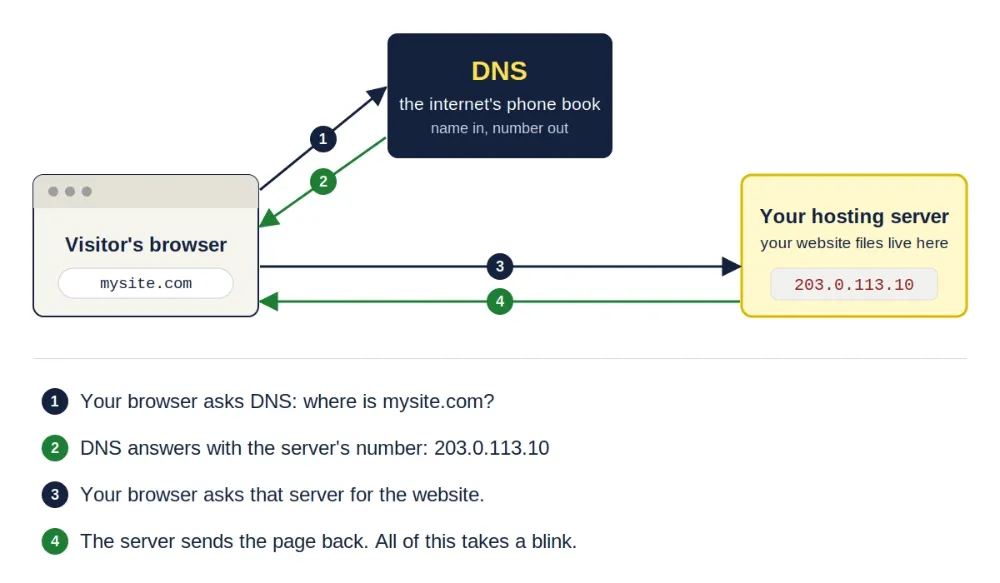
Computers find each other using IP numbers. A domain name is a friendly label for that number, and a system called DNS works like the internet's phone book: you give it a name, it gives back the number.
Three parties are involved:
- The registrar: the company where you register the domain. You don't buy a domain forever. You rent it, usually one year at a time, and renew it.
- DNS: holds records saying which server your domain points to.
- Your host: where your website files live.
Put your site on your domain
The steps are the same idea on every host. Only the buttons and menu names change.
1. Know where your site lives
What you point your domain at depends on your hosting type:
| Where your site lives | What your host gives you | Usual record |
|---|---|---|
| Shared hosting | A server IP address | A record to that IP |
| VPS or cloud server | A server IP address | A record to that IP |
| Site platform (such as Vercel, Netlify or Render) | A hostname to point to, and sometimes IPs | CNAME or A, as the platform tells you |
Always follow your host's own instructions for the exact values. They are shown in its dashboard or documentation, and often in the welcome email.
2. Point the domain to your host
You can do this in one of two ways. Choose one, not both.
- Option A: change the nameservers. At your registrar, replace the domain's nameservers with the ones your host gives you. From then on you manage all records in your host's dashboard.
- Option B: keep DNS where it is (at the registrar or a service like Cloudflare) and add records there: an A record sending the domain to your server's IP, and a CNAME record so
wwwfollows it.
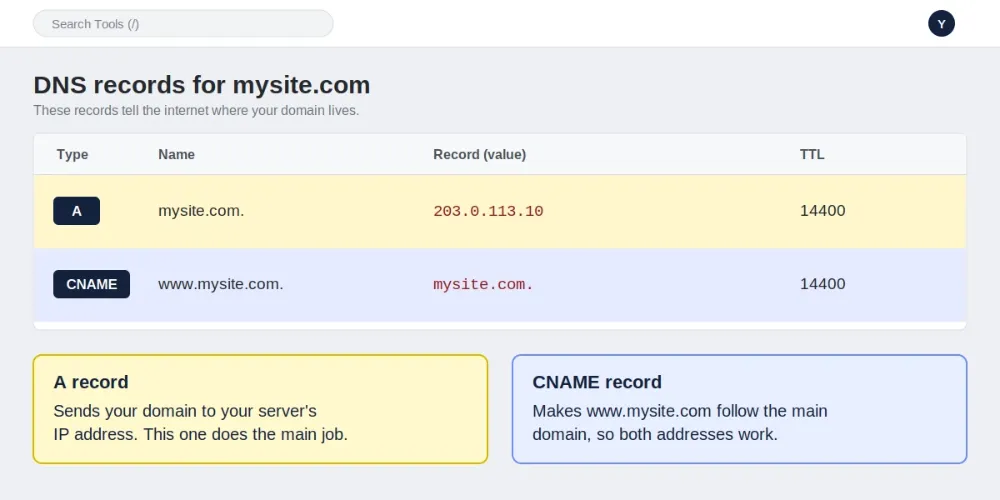
Common trap: records only count where your domain's DNS is actually hosted. If you changed the nameservers to your host's (Option A), records you add at the registrar are ignored, and the other way around.
3. Tell your host about the domain
Pointing the domain at a server is not enough. The server also has to know which site belongs to that name. Every host has a place for this: a Domains page on shared hosting (cPanel's is one example), a server_name line in the web server settings on your own server, or a Domains tab in a platform's project settings. Skip this step and your domain reaches the server but shows a default page.
4. Wait for DNS to spread
This is called propagation. It can take anywhere from a few minutes to a day or two, though it is often quick. Until it finishes, the domain may fail or show an old page for some people.
5. Turn on HTTPS
Most platforms and many hosts install a free certificate automatically once your domain points to them. On your own server you can use a free certificate service such as Let's Encrypt with the Certbot tool. Either way, the domain must already be pointing to the server first. When it's done, set the site to redirect all http visits to https.
6. Choose one version of your address
mysite.com and www.mysite.com count as two different addresses. Pick one as your main address and redirect the other to it. Platforms usually have a setting for this. On an Apache server, these rules do it (put them in the site's .htaccess file). The first sends www to the plain domain, and the second sends anyone who arrives by the bare server IP to your domain:
RewriteEngine On
RewriteCond %{HTTP_HOST} ^www\.mysite\.com$ [NC]
RewriteRule ^(.*)$ https://mysite.com/$1 [L,R=301]

RewriteCond %{HTTP_HOST} ^203\.0\.113\.10$
RewriteRule ^(.*)$ https://mysite.com/$1 [L,R=301]
Replace the example domain and IP with your own. On Nginx or another server the idea is the same, but the syntax is different, so check its documentation.
Fix the addresses hiding in your code
AI-written code often has localhost written into it. On a live site that breaks things in a confusing way. A visitor's browser reads localhost as their own computer, so your page tries to load data from a machine that has nothing to do with your site.
Bad:
fetch("http://localhost:3000/api/products")Good (works anywhere):
fetch("/api/products")Search your whole project for localhost, 127.0.0.1, 192.168, and any IP you used. Then check these places:
- Site URL settings: values like
APP_URLorBASE_URLshould use your real domain, withhttps. - Login and payment services: Google login, payment gateways and similar services need your real domain in their dashboards, as the allowed redirect (callback) address. Payment webhooks can't reach
localhostat all, because the gateway's servers need a public HTTPS address. - Allowed origins (CORS): if your code lists allowed addresses, replace
localhostwith your domain. - Sitemap and canonical tags: they should show the domain, not an IP or local address.
One exception: the database address depends on your setup. On many hosts the database runs on the same server as your site, so localhost is correct there. On cloud or managed databases, your provider gives you a separate address to use instead. Never leave a database open to the whole internet.
Common problems
- "This site can't be reached" right after setup: DNS may not have spread yet, or a record is wrong. Wait, then check the records.
- The domain shows your host's default page: the domain reaches your server, but the server doesn't know the site belongs to it. Add the domain in your host's settings.
- It shows an old site or someone else's: an old record or your browser's cache. Try a private window, or another network.
- "Not secure" or a certificate error: the certificate hasn't been issued yet, or the domain doesn't point to your host yet.
- Works with
wwwbut not without it (or the reverse): one record is missing. Add the CNAME forwww. - Using a tunnel tool for a demo: tools like ngrok or Cloudflare Tunnel are fine for a quick test, but they aren't hosting.
- Opening your home router to the internet (port forwarding): avoid it. It exposes your home network, and home IPs often change.
Protect your domain
Your domain is the most valuable address you own, so protect it:
- Turn on auto-renew. An expired domain can be registered by someone else.
- Use a strong, unique password and two-factor authentication on your registrar account.
- Enable the registrar lock, which stops the domain being transferred away without your approval.
- Keep your contact email current, since renewal and security notices go there.
The 2-minute self-check
- Open
http://YOUR-SERVER-IP. It should not show your site (or should send you to your domain). - Open
http://mysite.com. It should end up onhttps://mysite.comwith a padlock. - Open the
wwwversion. It should end up at the same final address. - Search your project for
localhostand any IP numbers. - In a terminal, run
nslookup mysite.com. The answer should show your host's IP (or, on a platform, point you to its servers).
The short checklist
- Use
localhostonly for building, never as your address - Register a domain and turn on auto-renew and two-factor authentication
- Point it to your host with nameservers (Option A) or A and CNAME records (Option B), not both
- Add the domain in your host's settings so the server knows which site it belongs to
- Wait for DNS to spread, then turn on HTTPS
- Pick one version (with or without
www) and redirect the other - Replace every
localhostand IP in your code, and update login and payment dashboards - Stop the site from answering on the bare server IP
A domain is what turns "it works on my computer" into "anyone can visit it." Set it up once, properly, and every link you share will keep working, even if you change hosts later.